Create Job

Contents
A new Job can be created in Field Portal App by clicking on the Menu button and selecting the Create Job option.
NOTE: |
|---|
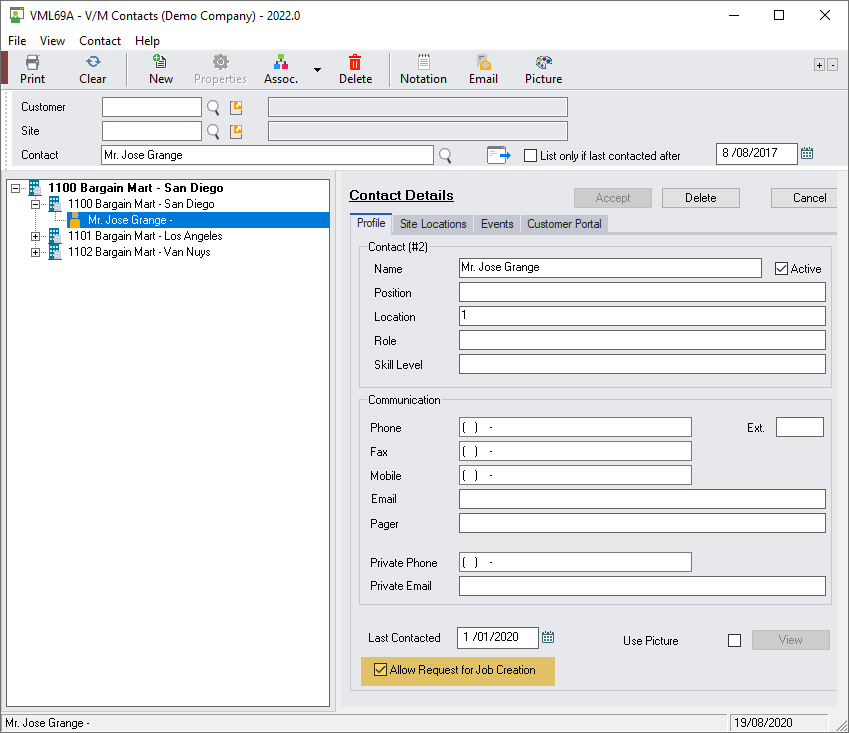
Contact - Job Authorization A field has been added in Service Manager Contact Setup “Allow Request for Job Creation”.
|
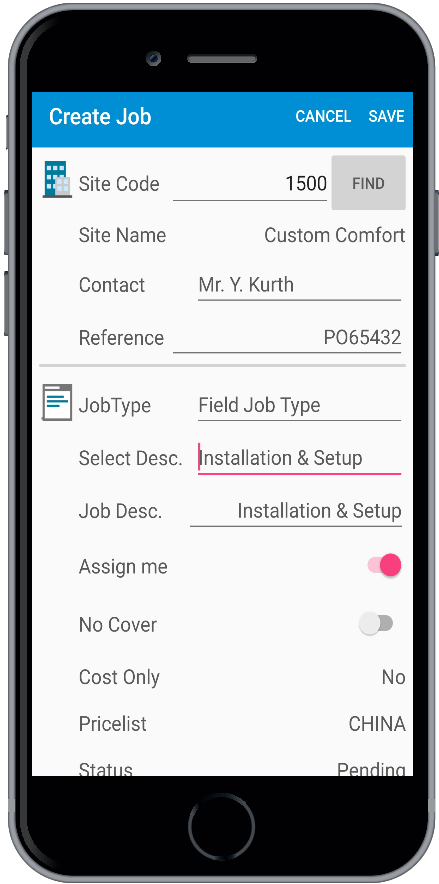
Fields available to be edited or viewed in the Create Job Page depend on the Configuration Settings.
Site Related

•Select the Site
•Select the Site Contact
•Enter a Reference - This field will only display If the Site's setting for 'Reference field must be populated' is ticked on in the V/M Sites program > Overrides tab.
Job Related
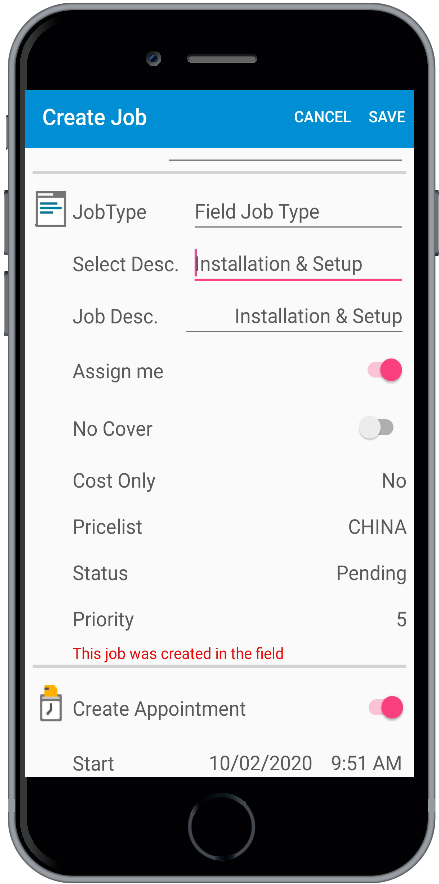
•Select the Job Type
•Select the Class description
•Modify the Job Description
•Switch off the Assign Me option - which will by default, switch off the Create Appointment option
•Switch on the No Cover option - which will result in the resultant Job not being covered by any Agreement.
•Display the Job Type's default Cost Only option as per the Job Type
•Display the Job Type's default Pricelist as per the Job Type
•Display the Job Type's default Priority as per the Job Type
Appointment Related
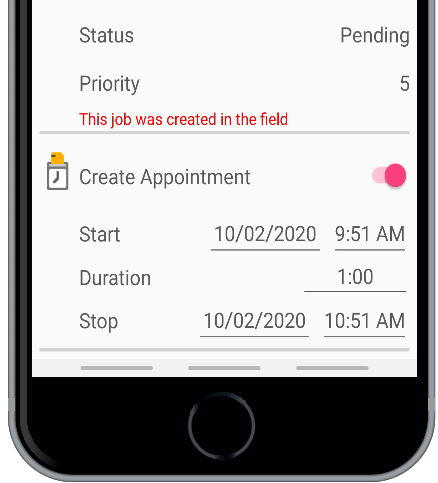
•Switch off the Create Appointment option
•Modify the Start Date and Time
•Modify the Duration
•Modify the Stop Date and Time
Once the details of the Job have been updated select the Save button.
The Job will be created with a temporary Job Number starting with NEW, for example NEW0001, NEW0002 etc.

The Job will be allocated a sequential Job Number once a Job sync has occurred.